
How to Create an Account on PixEarn? Complete Step-by-Step Signup Guide
Introduction
If you create photography, digital art, editing, AI art, wallpapers, reel covers, or creative images, PixEarn is an amazing platform where you can earn money through views by uploading your images.
No investment required - just create an account → upload images → get views → earn money.
Why is it important to create an account on PixEarn?
- Best platform to convert your talent into passive income
- Suitable for beginners - no followers or experience required
- Worldwide audience exposure
- Fast approval system
- Analytics & performance tracking
- Multiple earning opportunities: Views + Image Selling (optional)
Benefits for Creators & Beginners
Creators | Beginners |
|---|---|
Build professional portfolio | Zero investment |
Passive income through views | Simple upload system |
Brand identity grows | Learn digital content industry |
Sell images for extra earning | Improve skills with analytics |
How to Create an Account on PixEarn? (Step-by-Step Guide)
To create an account on the PixEarn website, you first need to go to the URL https://pixearn.com. Then follow the steps below:
Click Sign up / Register Icon
In desktop you can see the signup icon in the top right corner, and in mobile devices you can see the icon in the bottom right corner.
Direct Link: https://pixearn.com/auth/signup
Enter email & password
After open the signup page, add your Email address and create a password (a strong password can keep your account safe).
After entering your email address, you will receive an email verification message on your inbox (e-mail inbox), you need to verify your email before using your account.
Dashboard Opens
After verification, you will be redirected to the login page where you can enter your credentials and start using the dashboard.
The dashboard has several tabs on the left side, which will be used for different tasks like checking analytics, managing the content of your posts, checking your monetization eligibility, checking your earnings and much more.
Setup Profile, Bio, Banner etc.
After opening your dashboard, you can see an profile picture icon in the top right corner (this will be your default profile picture). You can click on the profile picture and a popup will appear where you will get the profile option. Click on the profile button shown in the image below.
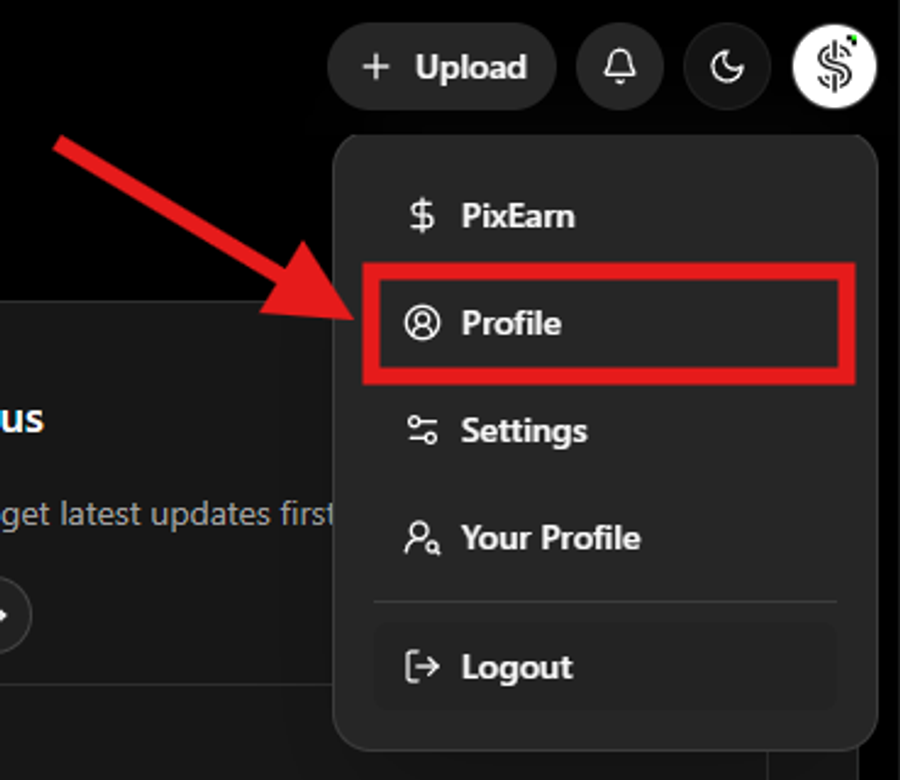
You are then redirected to your profile page where you can add a profile picture, banner, update your username, add links, profession and bio.
Upload Your First Image
After updating your profile, you can upload your first image by clicking the "+ Upload" button in the top right corner. This opens a small window where you can drag and drop or upload images (up to 5 at a time). All your images for a post will be in the same aspect ratio. If you upload images with different aspect ratios, you'll see an option to set all images to the same aspect ratio.
For better SEO, you can also add alt text to each image by clicking the Edit button. Then click the Next button. Once all images have been successfully uploaded, you can add titles, descriptions, and tags.
Titles, descriptions, and tags are very useful for showing your images in related and search pages. Our search engine uses titles and tags for primary searches, and descriptions for secondary searches.
Titles - For better SEO, use short, precise titles without underscores or special characters.
Finally, click the "POST" button to make your image live. Remember to check the status field; you must select 'Published' to make your image live, otherwise it will be saved as a draft.
Your image will now be live, but remember that if your image contains nudity or invalid content, it will be removed by our community. It must follow our Community Guidelines.
Check Allowed Content on PixEarn
What to keep in mind when creating an account
- Choose a proper username (ex: PixelShots, ArtByAman, HDR_Nature)
- Profile photo should be professional — logo / clear face / signature design
- Be sure to add keywords to your bio (AI Artist, Graphic Designer, 3D Artist, etc.)
- Short and professional bio: “AI artist | 4K Wallpaper Creator | Realistic Digital Art”
- Avoid fake identities → improves approval and trust scores
Common Account Creation Problems & Solutions
| # | Problem | Solution |
|---|---|---|
| 1 | Email not receiving | Check spam/promotion folder |
| 2 | Upload failure | Check minimum resolution |
| 3 | Verification rejected | Check profile details & real identity |
| 4 | Image not showing | Wait for manual moderation time |
Is PixEarn Account Free or Paid?
- 100% free
- No registration charges
- Earning only through views & optional image selling
Safety & Security
- Data privacy protected
- No sharing of personal information
- Use strong password
- Future update: 2-step verification recommended
Frequently Asked Questions (FAQ)
1. Is PixEarn account free?
Ans. Yes complete free to create account and monetize, you don't need to pay a single penny to use PixEarn. You only need to pay if you buy some services, arts, membership from PixEarn.
2. Can I create 2 main accounts?
Ans. Allowed only for different identities. Multiple accounts for the same user can be restricted.
3. Is mobile upload allowed?
Ans. PixEarn have a responsive design with advance dashboard feature, so you can use PixEarn in desktop or mobile or in any device where you can run browser. Yes, 100% allowed.
4. When does earning start after signup?
Ans. For start earning by views on PixEarn, you first need to complete the criteria for monetization.
Criteria for monetization - click here to read complete monetization policy
Conclusion
PixEarn is an amazing earning opportunity for creators where you can convert your creative talent into income and monetize every pixel.
Just create an account → upload → follow analytics → earn.